Thursday, March 2, 2017

Spiritual Food

You Need Spiritual Food for Spiritual Strength

You Need Spiritual Food for Spiritual Strength
By Rick Warren
“Search for the LORD and his strength. Always seek his presence” (1 Chronicles 16:11 GW).
Just like you need physical food for physical strength, you need spiritual food for spiritual strength. The Bible describes itself as spiritual food — the water, milk, bread, and meat of our spiritual lives. It’s everything you need for sustenance.
If you were a construction contractor, you wouldn’t consider sending out a guy who hadn’t eaten anything in two weeks. If you were a commander in the Army, you wouldn’t send a person into battle who hadn’t eaten in a month. Right? We need to feed ourselves to have the strength to accomplish the tasks ahead of us.
You’re not going to have much success in winning the spiritual battles you face if you’re starving yourself to death. That’s why we need to feed on the Word of God.
Unlike eating physical food, whenever I feed on God’s Word, I get even hungrier. The more I taste and see how good God is, the more I want.
The Bible says in Colossians 3:16a, “Let the message of Christ dwell among you richly” (NIV). Paul is telling us to let the Bible take up residence in our lives in a rich, profound, and life-giving way.
So how do we feed ourselves on the Word of God and allow that to happen?
  • Receive the Word with your ears. Commit yourself to go to church and listen to God’s Word being preached. 
  • Read the Word with your eyes. Having a Bible in your house is not going to bless your life. You have to have the Bible in your heart. 
  • Research the Word with your hands and mouth. When studying the Word of God, keep a pencil in your hand. Write down what God teaches. Talk about what you’re discovering with other believers in a small-group environment.
  • Reflect on the Word with your mind. Think about and chew on God’s Word.
  • Remember the Word with your heart. You’ll rarely have a Bible with you when you need it. Commit God’s Word to memory.

Wednesday, March 1, 2017

Configure Proxy Server on Mac

How to Configure a Proxy Server on a Mac


When you configure a proxy server on your Mac, applications will send their network traffic through the proxy server before going to their destination. This may be required by your employer to bypass a firewall, or you may want to use a proxy to bypass geoblocking and access websites that aren’t available in your country.

The proxy server you set here will be used by Apple Safari, Google Chrome, and other applications that respect your system proxy settings. Some applications, including Mozilla Firefox, can have their own custom proxy settings independent from your system settings.

Open the System Preferences application by clicking on it in your Dock, or going to the Apple menu > System Preferences. Click the “Network” icon.


Select the network connection you use in the list. For example, if you want to configure the proxies used while connected to Wi-Fi networks, select “Wi-Fi”. If you want to configure the proxies used while connected to wired networks, click “Ethernet”.

Click the “Advanced” button at the bottom right corner of the Network window.


Select the “Proxies” tab. You’ll need to configure a proxy by enabling one or more of the protocol checkboxes here.

To have your Mac detect whether a proxy is necessary and automatically configure the proxy settings, enable the “Auto Proxy Discover” checkbox. Your Mac will use the Web Proxy Auto Discover protocol, or WPAD, to automatically detect whether a proxy is necessary. This setting may be used on business or school networks, for example.

Even after enabling this option, your Mac will only use a proxy if one is detected using WPAD. If you never want your Mac to use a proxy, even if one is detected with WPAD, leave this box unchecked.


To use an automatic proxy configuration script, also known as a .PAC file, enable the “Automatic Proxy Configuration” checkbox. Enter the address of the script in the URL box. Your network administrator or proxy provider will provide you with the address to the proxy configuration script, if you need one.

If you don’t need to use an automatic proxy configuration script to configure your proxy settings, leave this box unchecked.


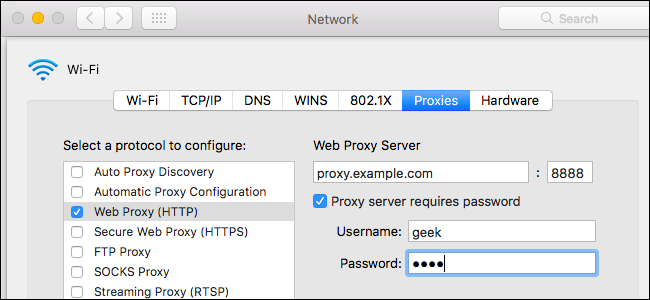
To manually configure a proxy, you’ll need to enable one or more of the “Web Proxy (HTTP)”, “Secure Web Proxy (HTTPS)”, “FTP Proxy”, “SOCKS Proxy”, “Streaming Proxy (RTSP)”, and “Gopher Proxy” checkboxes. Enter the address and port number of the proxy for each option you enable. If you were provided with a username and password for the proxy server, enable the “Proxy server requires password” option and enter the username and password.

For example, let’s say you want to configure a proxy that’s used for HTTP, HTTPS, and FTP connections. You’d check the “Web Proxy (HTTP)”, “Secure Web Proxy (HTTPS)”, and “FTP Proxy” boxes. After checking each, you’d enter the address and port of the proxy server into the right pane. If you want to use the same proxy server for all three, you’d enter the same address three times. if you were provided with different proxy server addresses for different protocols, you’d enter different proxy server addresses for these connections.

If you don’t want to manually configure a proxy, ensure all these boxes are unchecked.


The remaining settings allow you to bypass the proxy server when connecting to specific addresses and domains you configure.

The “Exclude simple hostnames” checkbox allows you to bypass the proxy for all “simple hostnames”. These are often used on local networks and intranets. For example, a network might have a local website at “portal” or a local file server at “fileserver”. In other words, users may have to plug “http://portal/” or “https://fileserver/” into their address bar to access these systems. This type of hostname only works on a local network. By checking this box, you can bypass the proxy for all simple hostnames on networks you connect to.

The “Bypass proxy settings for these Hosts & Domains” box contains a list of host names, domain names, and IP address ranges that won’t be accessed through the proxy. For example, it contains “*.local” by default. The “*” here is a wildcard and matches anything. This means anything that ends in .local, including server.local, database.local, and anything.local, will be accessed directly without going through the proxy.

To add your own domain names and addresses, just separate each with a comma and a space. For example, to tell your Mac to access howtogeek.com without going through the proxy, you’d change the line to:

*.local, 192.254/16, howtogeek.com


If you have issues connecting to FTP servers after configuring an FTP proxy, ensure the “Use Passive FTP Mode (PASV)” option is enabled at the bottom of the window here. It’s enabled by default.


Click “OK” to save your settings when you’re done. Click “Apply” at the bottom right corner of the Network settings screen and your changes will take effect.

img_589d11490a260

If there’s a problem with the proxy server settings—for example, if the proxy server goes down or if you entered the details incorrectly—you’ll see a network error message when using applications like Safari and Google Chrome. For example, Safari will say it can’t find the server you’re trying to access, while Chrome will display a more descriptive “ERR_PROXY_CONNECTION_FAILED” error message. You’ll need to fix your proxy server settings to continue.

img_589d11490a260

Did You Know/Term

Did You Know?

If you eat a diet rich in vegetables, then you’re eating a wide variety of plant parts. For example, when we eat asparagus we’re eating the stem of the plant, with carrots we eat the root, with corn we eat the seeds, with lettuce we eat the leaves, and with broccoli we eat the flower.

Today's Tech Term 

L1 Cache

The L1 Cache (short for Level 1 Cache, a.k.a. Primary Cache) is a memory bank built into the microprocessor (CPU chip) and is the fastest memory in a computer. It is also “closest” to the processor.

Trivia

Which Of These U.S. Paper Currency Bills Features A Non-Washington D.C. Landmark?
The $50 Bill
The $100 Bill
The $5 Bill
The $20 Bill


Answer: The $100 Bill
If you look at the back of most circulated U.S. bills, you’ll find a building of some note from the Washington D.C. area on most of them. The $5 bill has an engraving of the Lincoln Memorial (an unsurprising companion to Lincoln’s portrait on the front). The $10 bill has a portrait of Hamilton on the front and the U.S. Treasury Building on the back—fitting, as Hamilton was the first U.S. Secretary of the Treasury.
The $20 bill has Jackson on the front and the White House on the back—if you want a clear answer as to why, you’ll need to jump into a time machine and go back to 1928 when the current design was selected, as the reason is unknown even to historians at the U.S. Treasury. Like the $20 bill, the $50 bill features a former U.S. President (Grant) on the front and a landmark on the back (the U.S. Capitol building).
Outside of the bills that feature a Washington D.C. landmark—the $1 bill has the Great Seal of the United States on the back, the $2 bill has a portrait of the signing of the Declaration of Independence on the back, and then there is the $100 bill. Featuring Ben Franklin on the front, the back doesn’t have a U.S. capitol landmark, but instead an engraving of Independence Hall in Philadelphia where the Constitution of the United States was signed.

Cloudflare & Leaked Data

What Is Cloudflare, and Did It Really Leak My Data All Over the Internet?


Over the past few months, a bug in the popular Cloudflare service may have exposed sensitive user data—including usernames, passwords, and private messages—to the world in plain text. But how big is this problem, and what should you do?

What Is Cloudflare?

Cloudflare is a service that offers security and performance features (among other things) to a wide network of websites. It acts as a reverse proxy, a middleman between you—the user—and a given website. When you go to visit that site, you’ll be directed to one of Cloudflare’s servers instead of the actual site’s servers.

This allows Cloudflare to ensure you’re a legitimate user (thus protecting against denial of service attacks), load the site faster (since they’ve cached certain parts of the site), and protect against downtime (since they have multiple servers worldwide and can fall back on any server if one has a problem).


Cloudflare ensures DDoS attackers don’t get their traffic through to the actual website.

In short: Cloudflare aims to make sites faster and more secure, and it’s a service a lot of websites use.

What Happened? (And What Is “Cloudbleed?”)

Unfortunately, nothing is 100% secure, even if a site uses a service like Cloudflare, and bugs happen. In this case, Cloudflare actually caused a security problem: a bug in the reverse proxy code that parses HTML caused Cloudflare’s servers to leak the contents of its memory in certain circumstances. (Some people are referring to this as “Cloudbleed”, a play off the Heartbleed bug that also affected a large portion of the internet.)

This data could have included all kinds of sensitive data, including usernames, passwords, private messages, OAuth tokens, and a lot more. Even worse, some of that data was indexed and cached by some search engines (about 700 pages, according to Cloudflare), so if you knew what to search on Google, you could find sensitive data from users logging in at the time of a specific leak.


If you know what to search, you could find some of Cloudflare’s leaked information on search engines.

This bug went undiscovered for about five months, and was patched after being discovered this week. Cloudflare says “the greatest period of impact was from February 13 and February 18 with around 1 in every 3,300,000 HTTP requests through Cloudflare potentially resulting in memory leakage (that’s about 0.00003% of requests).”

But with a service as popular as Cloudflare, 0.00003% is still a lot. Some folks have been compiling a list of sites that use Cloudflare, and it includes over 4 million domains—including Yelp, OkCupid, Uber, Authy, Medium, and many many more. (Some mobile apps are affected as well.)

You can read more about the technical details of this bug at Cloudflare’s blog, though it will probably only interest you if you’re a programmer—if you’re a regular internet user, the only thing you need to know is…

What Should I Do?

First: don’t panic too much. Not every site on that list of 4 million necessarily leaked sensitive information—if a site was just using Cloudflare to cache image data, for example, there would be no sensitive information to leak. And it’s not like each leak was a master list of passwords anyway—it was random pieces of information, which could have included a few random usernames and passwords at any given time.

However, Cloudflare also noted that one of their own private keys was leaked, which would have provided an attacker access to a lot of internal Cloudflare data—including, potentially, usernames and passwords.  Cloudflare was extremely vague about this particular point, despite it being a major security risk with the potential to leak a lot more sensitive information

All that said, there’s no real way to tell if any of your data was leaked and where, so the only safe course of action right now is to change all of your passwords. (Sure, you could look through the list of 4 million sites and only change those used by Cloudflare, but honestly, it’d probably be easier and faster to just change them all.)


The usual rules with passwords apply here: don’t use the same password on multiple sites, use a password manager like LastPass, and turn on two-factor authentication for every site that allows it. If you aren’t doing these things, the Cloudflare bug is probably the least of your worries—after all, sites get hacked all the time, and if you’re using the same password everywhere, all your data is regularly at risk.

If you’re already using a password manager, this process should be easy (if a bit long and boring). But you should be used to this dance by now.

Movie Preview - The Shack

Entertainment News

The best picture mix-up made headlines, but the Oscar winners made history


Viola Davis and her Oscar for best supporting actress. (Marcus Yam / Los Angeles Times)

By Josh Rottenberg
Contact Reporter

At Sunday night’s Academy Awards, a last-minute fumble overshadowed a much larger, and more significant, event.

While everyone scrambled to absorb, and then deconstruct, the mistaken announcement of “La La Land” as best picture when “Moonlight” had actually won, a thousand conversations about errant envelopes threatened to take the spotlight off the historic nature of the night’s winners.

After two years of blistering criticism over back-to-back slates of all-white nominees, the motion picture academy spent the better part of last year attempting to broaden its membership and its sense of what it stood for as the public face of the movie business. Stung by last year’s #OscarsSoWhite furor, the group headed into the 89th Academy Awards hoping to turn the page on the diversity debate — and perhaps find a moment of redemption.

And the best picture debacle notwithstanding, that’s just what it did.

This year, the academy rewarded more African American actors and filmmakers in more categories than it ever had in a single year.

Just 12 months after host Chris Rock scathingly branded the 2016 Academy Awards “the White People’s Choice Awards,” Sunday’s Oscars offered a dramatically different picture of the state of inclusion in the film industry.

Capped by the stunning upset best picture win for the drama “Moonlight” — the story of a gay African American boy growing up in poverty in Miami — the evening saw a record-breaking number of awards go to black actors and filmmakers, including “Fences” star Viola Davis and Mahershala Ali of “Moonlight,” who took home  supporting actress and supporting actor honors.

Accepting the adapted screenplay prize alongside Tarell Alvin McCraney, director Barry Jenkins gave a nod to those who long have felt underrepresented by Hollywood. “All you people out there who feel like there's no mirror for you, that your life is not reflected … we have your back,” Jenkins said.

The diversity of Sunday night’s winners — which also saw Ali become the first Muslim actor ever to win an Oscar — were seen by many as a sign that, as academy President Cheryl Boone Isaacs told the crowd at the Dolby Theatre, the film industry is “becoming more inclusive and diverse with each passing day.”

“This demonstrates how far the academy has come,” National Assn. for the Advancement of Colored People President and Chief Executive Cornell William Brooks said in a statement. “The NAACP is happy that this year’s Academy Awards has taken a step forward in recognizing the work that people of color bring to this industry as a whole.”

The question, of course, is whether that step forward will represent lasting change or be followed by a return to business as usual in an industry in which entrenched inequities in hiring persist.

“I was elated because what I thought was the best film actually won,” said writer and activist April Reign, who created the #OscarsSoWhite hashtag in 2015. “I'm also incredibly encouraged about what happened in the lesser-known categories: adapted screenplay and best documentary and the nominations that we had of black people in cinematography and editing.

“All that said, it’s just one night out of 90 nights of lack of representation of marginalized communities,” she continued. “#OscarsSoWhite remains relevant because there are still so many stories from traditionally underrepresented communities that need to be told.”

In the wake of last year’s #OscarsSoWhite furor, the academy took dramatic steps aimed at diversifying its overwhelmingly white and male ranks, inviting the largest, most diverse class ever to join the institution. But whether those measures were directly responsible for this year’s results is impossible to know.

 Todd Boyd, professor of cinema and media studies at the USC School of Cinematic Arts, is wary of reading too much into one year’s Oscar results.

“There are people who are like, ‘Look! Hollywood is cured!’ ” Boyd said. “But as we know, using that metaphor, the disease has the possibility of coming back anytime unless it’s totally eradicated, and we’re nowhere close to it being totally eradicated.

The academy, he added, “made an effort to become more diverse but the ranks of studio executives and the people who call the shots in Hollywood — that hasn’t changed. The power structure hasn’t changed.”

Though she played a key role in sparking the diversity debate, Reign said the diversity reflected in this year’s Academy Awards can’t be chalked up to the #OscarsSoWhite hashtag — nor should it be.

“I already have people [on Twitter] saying ‘Moonlight’ only won because of affirmative action,” she said. “That’s unfortunate, because I think it really downplays all of the effort and hard work and talent that goes into all of these performances.

“Nobody questioned whether Emma Stone should win an Oscar or whether Meryl Streep should win an Oscar,” she added. “But people always question whether a person of color should, and that’s just unfair. Viola Davis deserves every award ever, in every category.”

For her part, in one of the evening’s most moving acceptance speeches, Davis made clear what her first Oscar win meant for her as someone who, as a girl, had started to hone her acting skills in tea party games with her sister, pretending “we were rich white women.”

“People ask me all the time, what kind of stories do you want to tell, Viola?” Davis told the crowd. “The stories of people who dreamed big and never saw those dreams to fruition. People who fell in love and lost. I became an artist — and thank God I did — because we are the only profession that celebrates what it means to live a life.”

Wed Inspiration

Morning Inspiration with Pastor Merritt

I have been privileged to walk through some unbelievable doors in my life. I’ve walked through the door of the Oval Office in the White House. I’ve walked through the door of the private home of Dr. Billy Graham. I have walked through the door of the private office to the Speaker of the House of Representatives. The most important door I’ve ever walked through and the most important door you will ever walk through is the door named Jesus Christ.

One of the most stimulating, gripping, inspiring and yet depressing books I’ve ever read in my life was entitled, "102 Minutes: The Untold Story of the Fight to Survive Inside the Twin Towers." It is the up-close, moment-by-moment account of the heroic struggle for life inside the World Trade Center on the morning of September 11.

Fourteen thousand people were inside the Twin Towers, 12,000 were able to escape, but almost 2800 were not. The book details how some people lived and some people died. In many instances, whether they lived or died, depended upon one decision that they made - which door did they take?”

The book recounts the story of one group of people who were trying to decide the best way to get out of the building. Most of the people in the group decided to take the door that led into an elevator. The rest of the group decided to take the door that led to the stairwell. The group that took the elevator died. The group that took the stairwell lived. There were two doors in which you could take: one represented death and one represented life.

Life really is all about making sure you choose the right door. You know a door represents separation, because you are either on one side of the door (on the inside looking out) or you are on the other side of the door (on the outside looking in). If you are on the outside looking, in I encourage you today to open the door of Jesus Christ and walk into the only life worth living. If you are on the inside looking out, I encourage you to invite as many people as you can to join you in the door you have taken as well.

Only God

Only God

By Touching Lives
“You intended to harm me, but God intended it for good to accomplish what is now being done, the saving of many lives.” Genesis 50:20
The single sentence found in Genesis 50:20 in essence sums up the story of the Bible from beginning to end. The man that said these words was named Joseph. He grew up in one of the most dysfunctional families in history. Joseph was his father’s favorite of his 12 sons. His dad gave him the finest clothes. He also made him supervisor over his brothers. To top it all off, God gave Joseph a dream to let him know that one day he would rule over his brothers and his father. The more Joseph bragged, the angrier his brothers became.
What unfolded next is like something out of a Liam Neeson movie. The jealousy and hatred of Joseph’s brothers had become deeply rooted in their hearts. They devised a plan to rid themselves of him forever. They stripped Joseph of the beloved coat their father had given him, and smeared it with animal blood. Then, these brothers did the unthinkable…they sold their younger brother to slave traders headed to Egypt for 20 pieces of silver. They returned home with the horrifying story that a wild animal had killed Joseph. Their father, Isaac, was devastated. The brothers thought they were finally rid of Joseph forever. But, God…
Joseph’s story went from bad to worse. He went from that dark pit, to slavery, to a false rape allegation, to prison, and hadn’t done one thing wrong. But God had plans for Joseph…plans beyond his wildest expectations. After interpreting dreams in prison, Joseph was called to interpret the dream of Pharaoh. After doing so, Pharaoh busted Joseph right out of prison and hired him to be his right-hand man. Just like that, Joseph went from being a prisoner to the Prime Minister of Egypt.
Years later, Joseph’s life came full circle and he once again ended up face to face with his brothers. The same brothers who sold him to human traffickers, which led to slavery, false accusations, and imprisonment. Joseph had every right to be angry. He had the power to do away with his brothers. But Joseph was able to see that what his brothers meant for harm, God meant for good. He was able to forgive and extend grace. At the sight of his brothers he was overwhelmed with love instead of revenge. Only God…
No matter what life brings our way, there is always a “But, God…” in our story. We must only choose to see it and embrace it, just like Joseph did.

Burning Your Ships

Burning Your Ships

Burning Your Ships 
by Ryan Duncan, Crosswalk.com Culture Editor
“In the same way, any of you who does not give up everything he has cannot be my disciple.” – Luke 14:33
Every now and then, when I’ve got some time to spare, I’ll turn on the History Channel and let myself get lost in the past. Recently, I started watching a documentary on the Age of Exploration, when the kingdoms of Europe were sending out ships to explore the Americas. To the Europeans, the New World was a place of limitless promise but also great danger. Faced with new cultures, strange animals, and deadly plagues, many explorations returned home in failure.
Then in February 1519, an explorer named Hernando Cortezwas commissioned by the Spanish Crown to sail to the Yucatan and conquer it in the name of Spain. Cortez and his army set out at once, and when they reached the shores of the Yucatan, Cortez turned to his men and said,
“Burn the boats.”
Cortez refused to let turning back be an option. For the sake of his mission, it would be all or nothing. To many of us this may sound a bit extreme, but as it turns out, Jesus had the same principle when he started his ministry.
“As they were walking along the road, a man said to him, "I will follow you wherever you go." Jesus replied, "Foxes have holes and birds of the air have nests, but the Son of Man has no place to lay his head." He said to another man, "Follow me." But the man replied, "Lord, first let me go and bury my father." Jesus said to him, "Let the dead bury their own dead, but you go and proclaim the kingdom of God." Still another said, "I will follow you, Lord; but first let me go back and say good-bye to my family." Jesus replied, "No one who puts his hand to the plow and looks back is fit for service in the kingdom of God.’” – >Luke 9:57-62

Being a true Christian is something bold and dangerous. We live in a world that loves compromises, and teaches us that we are free to pick and choose what parts of religion we want to follow. Christ is different. When we become his followers, he tells us to take up our crosses and never look back. To follow him is all or nothing. So take some time today and renew your relationship with Christ, because God never claims a victory until he finally gets it all.
Intersecting Faith and Life: Are you holding onto something that is keeping you from God? Take some time to consider.
Further Reading

Solid Foundation

Build Your Life on a Solid Foundation: God’s Word 

Build Your Life on a Solid Foundation: God’s Word
By Rick Warren
“Therefore everyone who hears these words of mine and puts them into practice is like a wise man who built his house on the rock” (Matthew 7:24 NIV).
The foundation of a house tells you how big the house can get. You can’t put a big house on a small or faulty foundation. It’ll collapse every time.
The same is true for our lives. You can’t become what God wants you to be on a faulty foundation. We’re given a lot of different options for what will be the foundation of our lives:
  • Popular culture. Some people think they’ll simply do what every other person is doing. If it’s popular, that’s what they do, too. Yet what’s popular today won’t be popular tomorrow. Basing your life on popular culture is like building a house on a constantly moving foundation. It doesn’t work!
  • Tradition. Other people build their lives on what has always been done or how their parents did it. That does make a little sense. Tradition becomes tradition because it works. But no tradition lasts forever. It eventually wears out, becomes obsolete, and is invalid. In Mark 7:8 Jesus tells the Pharisees never to put tradition before truth. It’s a good reminder for all of us.
  • Reason. God gave us the ability to reason; we need to use it. But our reason isn’t infallible. Proverbs 16:25 says, “There is a way that appears to be right, but in the end it leads to death”(NIV). The smartest among us will falter at times; it’s to be expected. Only God can be trusted all the time.
  • Emotions. Some build their lives on a feeling. If it feels right, they do it. But feelings lie — they lie all the time! You lie to yourself more than anyone else. If you live by your feelings, you’ll spend your life manipulated by your moods.
If it doesn’t work to build your life on popular culture, tradition, reason, or emotion, what should you build your life upon? God’s Word.
Jesus says this in Matthew 7:24“Therefore everyone who hears these words of mine and puts them into practice is like a wise man who built his house on the rock” (NIV).
Popular culture changes, traditions grow stale, reason can be faulty, and emotions lie. Yet God’s Word never changes.
You may not always understand his Word. You may not always like it. It won’t always be politically correct.
But it’s the only thing stable enough to build our lives upon.

Tuesday, February 28, 2017

Find Mac's Serial Number (Even if Not Present)

How to Find Your Mac’s Serial Number (Even if You Don’t Have Your Mac)


Your Mac’s serial number is a unique identifier that distinguishes your Mac from all others. You have to provide your Mac’s serial number when requesting warranty service. You may also want to look up your Mac’s serial number if you’re reporting it stolen.

The easiest way to find your serial number depends on your situation. If your Mac turns on, you can find the serial number right in the interface. If it doesn’t turn on, you’ll need to locate it on the case or original packaging. And if you don’t have access to your Mac at all—say, it’s been stolen—you can probably still find the serial number through Apple’s website.

If Your Mac Turns On


If your Mac is working properly, finding the serial number is easy. Just click the Apple menu icon at the top of the screen and select “About This Mac”.


You’ll see the serial number displayed along with your Mac’s model number, hardware specifications, and the version of macOS you have installed.


If Your Mac Won’t Turn On


Your Mac’s serial number is printed somewhere on the Mac itself, so you’ll be able to find it if you can’t turn your Mac on.

Flip over a MacBook and you’ll see the serial number printed on the Mac itself, near the “Designed by Apple in California” text. On a Mac Mini, you’ll find the serial number on the bottom. On the Mac Pro, you’ll find it on the back panel.


If You Don’t Have Your Mac


If you don’t have access to your Mac, you can still find the serial number in a variety of locations.

If you signed into your Mac with an Apple ID account, the serial number is tied to your Apple ID account online. Head to the Apple ID account website and sign in with the Apple ID account you used on the Mac. Click the name of the Mac under “Devices” on the page that appears and you’ll see the Mac’s serial number.


If you enabled Find My Mac on the Mac and it’s been stolen or misplaced, you can track or lock it using the Find My Mac feature in iCloud.

If you still have the box your Mac originally came in, look on the box. The serial number is printed on the barcode label on your Mac’s original packaging.


The serial number is also printed on the purchase receipt if you purchased your Mac from an Apple Store in person or in the email receipt if you purchased it from Apple’s online store. Some other stores may also print the serial number of your Mac on the receipt, so check the receipt no matter where you bought your Mac from.

Also, if you’ve ever submitted a warranty or service request for the Mac, you’ll see the Mac’s serial number displayed in the Apple Store service confirmation email.

Useful Chromebook Tricks

Seven Useful Chromebook Tricks You Should Know About


IMG_07131

Chromebooks aren’t like traditional laptops. While they’re much simpler, they still have various useful features you may not know about. From accessing remote computers and printing to wiping your personal data, recovering Chrome OS, and installing desktop Linux, these tricks will help you get the most out of your Chromebook.

Control Who Can Log In

Chromebooks are marketed as laptops “for everyone.” By default, anyone with your laptop can pick it up, plug in their Google account, and log in. They won’t be able to access your data, but they will be able to use the machine with their own Chrome setup.

If you want to restrict access to your Chromebook, open the Settings menu by clicking the system tray and choosing the cog icon. From there, scroll down to the “People” section and click the Manage Other Users button.

Screenshot 2017-02-02 at 9.53.20 AM

From here, you can choose how much (or little) you’d like to restrict the device from other users, up to and including locking everyone out who isn’t you. It’s your Chromebook, you can be selfish with it!

Screenshot 2017-02-02 at 9.52.10 AM

Access Remote Windows, Mac, and Linux Desktops

You can’t run Windows programs on your Chromebook, but you can access remote Windows, Mac, and Linux desktops. The Chrome Web Store offers VNC clients for connecting to traditional VNC servers, but Chrome actually has Google-built remote desktop features as well. You can use this to access your desktop PC from a Chromebook or to remotely run that rare Windows application.

To do this, install the Chrome Remote Desktop app in Chrome on your PC. You can then activate the “Enable remote connections” option and connect to your PC from your Chromebook using the Chrome Remote Desktop app there.

This isn’t a Chrome OS-only feature, either. You can also use Google Chrome to remotely access Windows, Mac, and Linux PCs from any other type of PC,  whether you have a Chromebook or not.

windows-remote-desktop-on-chromebook

Print a Document with Google Cloud Print

If you ever need to print something, you should be aware that you can’t plug printers directly into your Chromebook and print to them. However, you can set up Google Cloud Print and use it to remotely print to supported printers from your Chromebook.

To add a printer to your Chromebook, jump into the Settings menu and scroll down till you see “Show Advanced Settings.” Click that.

Screenshot 2017-02-02 at 9.58.43 AM

Scroll down this menu to the “Google Cloud Print” section, then click the Manage button.

Screenshot 2017-02-02 at 9.57.43 AM

From here, you can add new printers if one is detected on the network—otherwise, devices that are already part of Cloud Print will show up. If you’ve ever printed to a network printer on another PC with Chrome, it will already be part of your Google Cloud Print. Neat, right? Setting up printers on Chromebooks is probably easier than any other device out there.

Screenshot 2017-02-02 at 10.01.02 AM

Chrome OS also includes the ability to print to a PDF, so you can always save a file as a PDF and print that PDF file later on another computer, if you like.

2017-02-02_10h34_00

Use Powerwash to Wipe Personal Data

Chrome OS includes a “Powerwash” feature that functions similarly to the Reset option on Windows 10, performing a factory reset to return your Chromebook to its original, clean state. It’s ideal when you are going to give your Chromebook to someone else, as it will remove all of your personal data. Think of it like reinstalling Windows or performing a factory reset of a tablet.

You’ll find this option on the Settings screen. Click the Show advanced settings link and scroll down the bottom, where you’ll see a Powerwash button.

Screenshot 2017-02-02 at 10.02.42 AM

Alternatively, if you’d just like to undo all of your custom settings, you can use the “Reset Settings” but to set everything back to default without having to Powerwash your Chromebook.

View Local Files

Your Chromebook isn’t just a web browser. It also includes a Files app along with local file viewers that allow you to watch videos, play music, read PDFs and Microsoft Office documents, view images, and more. You can download all sorts of media files and open them later from the Files app.


Recover Chrome OS From a USB Drive

Chromebooks include a recovery mode that allows you to reinstall Chrome OS if the operating system becomes damaged. That said, this is unlikely to happen unless you’re messing around in Developer Mode.

To recover your Chrome operating system, you’ll need to create a recovery drive. You can do this by downloading and running Google’s Chromebook Recovery Utility for Windows, Mac, or Linux.

2017-02-02_10h07_15

The Recovery Utility will provide a simple walkthrough when you launch it—you’ll need to know your exact Chromebook model, however. You can find your Chromebook’s model number from the recovery screen, but there’s also a link to select the model from a list in the Recovery Utility.

2017-02-02_10h08_18

Once you’ve selected your model, you’ll insert a flash drive or SD card in the PC with the Utility running and select it from the dropdown menu. One final warning will let you know that all data on said drive will be erased—just click “Create Now” to move forward.

2017-02-02_10h09_48

This process will take a bit, depending on your computer, drive speed, and internet connection. Just sit tight—the Utility will tell you what’s going on throughout the duration.

2017-02-02_10h14_33

To actually recover Chrome OS, you’ll need to press Escape+Refresh and hold down the Power button. Older Chromebooks have dedicated recovery buttons—you’ll find more information on Google’s website. From there, just insert your drive and follow the instructions.

650x433xIMG_9828-650x433.jpg.pagespeed.gp+jp+jw+pj+js+rj+rp+rw+ri+cp+md.ic.wZAtXn2G0G

Use Developer Mode to Run Desktop Linux

Chromebooks allow you to disable their security features and enable Developer Mode. In Developer Mode, you can modify Chrome OS all you like and boot other operating systems, including Ubuntu and other traditional desktop Linux systems. You can even run a desktop Linux system side-by-side with Chrome OS, switching between the two with hotkeys.

650x300xIMG_9838-650x300.jpg.pagespeed.gp+jp+jw+pj+js+rj+rp+rw+ri+cp+md.ic.jA3QWDrwiH

Movie Preview - Before I Fall

Block Notifications on Android Wear

How to Block Notifications from Specific Apps on Android Wear


Android Wear is a useful tool to have—notifications on your wrist are a brilliant thing. But it can also be incredibly distracting, especially if the notification isn’t “important.” Maybe you want something on your phone, but it has no place on your wrist. Here’s how to stop specific apps from pushing notifications to your watch.

First things first, jump into the Android Wear app. On the main Wear screen, tap the cog icon in the upper right corner.


Under the “General” section, tap the “Block app notifications” entry.


This section is where you’ll block apps from sending notifications to your watch. Hit the plus sign at the bottom.


From here, just scroll down the list and find the bothersome app, then tap it to add it to the list.


Bam, done. That’s literally all there is to it. Notifications from those apps will no longer appear on your watch.